AI agents for mobile app security testing on iOS and Android
Agents that work on jailbroken iOS and rooted Android virtual devices with a researcher’s access. An MCP server and an API are included, and a human stays in control.
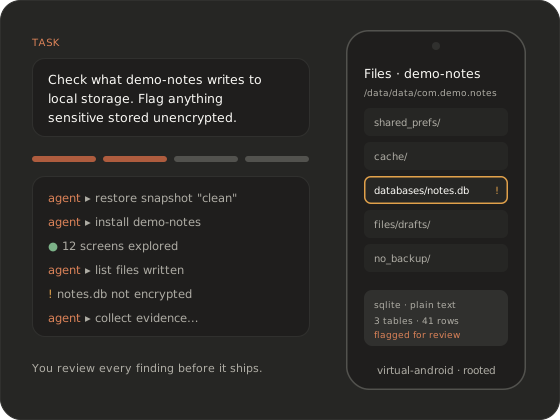 Illustrative session on a fictional demo app.
 How AI agents test a mobile app on a virtual device
An agent run follows the same loop a tester would. The difference is that the agent doesn’t get bored on the fortieth screen.
- 01
Describe the goal
Write a natural-language scenario: what to test, on which app, and what counts as a finding.
- 02
Start from a known state
The agent gets a virtual iOS or Android device from a clean snapshot, so every run starts the same way.
- 03
Install and explore
The agent installs the app and works through its screens, forms and flows, keeping a log of every action.
- 04
Inspect behaviour
While it explores, the agent looks at network traffic, data the app writes to storage and how the app behaves at runtime.
- 05
Back findings with evidence
For each potential issue, the agent collects screenshots, logs and traffic as proof, then checks that the issue reproduces before it reports it.
- 06
Write the report
The run ends with a report of what the agent did, what it found and the evidence for each finding.
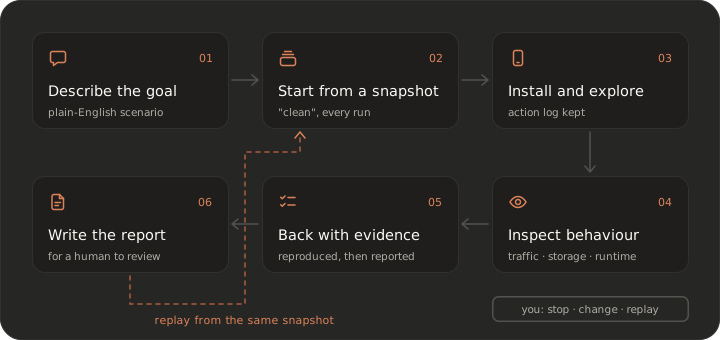
You stay in charge throughout. Stop a run at any step, change the instructions, or replay it from the same snapshot to check a result.
What AI agents can do on iOS and Android devices
Agents on simulators get taps and screenshots. Ours work on jailbroken and rooted virtual devices, so they can look under the UI too.
Explore the app on its own
The agent navigates screens, fills in forms and follows flows without a script written in advance, so coverage doesn’t depend on a test someone wrote last quarter.
Watch network traffic
The app’s network traffic can be inspected during a run, which is where dynamic analysis usually pays off first.
Read what the app stores
On a jailbroken iPhone or rooted Android device, the agent can inspect the app’s files and local data, not only what the screen shows.
Use the platform’s debugging
Agents work with the same app and kernel debugging capabilities a researcher uses on the platform.
Reset between attempts
The device returns to a snapshot before each attempt, so every attempt starts from the same state and results don’t leak from one attempt into the next.
Run on iOS and Android
Point the same scenario at both platforms and compare what each version of your app does.
Collect evidence per finding
Screenshots, logs and traffic are gathered as the agent works and attached to the finding they support.
MCP server for iOS and Android device control
Bring the AI client you already work in. Our devices show up as MCP tools it can call.
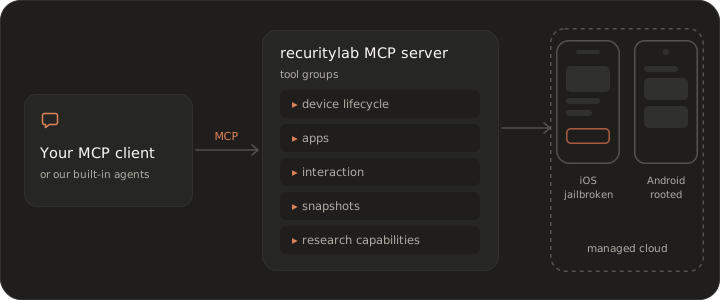
The Model Context Protocol (MCP) is an open protocol that lets AI clients use external tools through one standard interface. Our MCP server exposes virtual iOS and Android devices to MCP-capable clients, so an agent you already use can drive a jailbroken or rooted device with no glue code in between.
The MCP tools fall into a few groups:
- Device lifecycle: start, stop and reset virtual devices.
- Apps: install and launch the app under test.
- Interaction: see the screen and act on it.
- Snapshots: save a state and return to it.
- Research capabilities: platform features such as traffic inspection. We go through what’s available over MCP and the API for your setup in the demo.
That’s the difference from a local MCP server. Local servers need Xcode or adb on your machine and work against a simulator, an emulator or a phone on a USB cable, usually at the UI level. Ours runs against managed, jailbroken and rooted virtual devices in the cloud, built for security research rather than UI automation alone.
MCP connections use credentials issued to your team once access is granted; the details are covered in the product docs.
{
"mcpServers": {
"recuritylab": {
"url": "<MCP endpoint from the product docs>"
}
}
}  API and MCP overview
 Natural-language security testing scenarios
Describe the job the way you’d brief a colleague. The agent turns it into steps.
Example scenarios, all against fictional demo apps:
Illustrative promptsPentest a login flow
app pentesting“Explore the sign-in and password-reset screens of demo-bank. Check what the app sends over the network and what it keeps on the device afterwards.”
Expected outcome: a list of observations on transport and session handling, each with captured traffic and screenshots.
Check local data storage
“Use demo-notes for five minutes like a normal user, then show me every file the app wrote and flag anything sensitive stored unencrypted.”
Expected outcome: a map of the app’s local storage, with flagged items and the file evidence for each.
Observe a sample’s network behaviour
malware analysis“Install sample-07 on a clean Android device, interact with it as a user would, and record every host it contacts.”
Expected outcome: a timeline of network activity and device changes, then a revert to the clean snapshot.
Regression check in CI
mobile CI“On every build of demo-shop, repeat last release’s storage and traffic checks and tell me what changed.”
Expected outcome: a per-build report showing new, fixed and unchanged findings.
Human in control, findings with evidence
AI that reports noise wastes more time than it saves. So every finding has to prove itself.
An agent’s finding isn’t a verdict. It’s a claim with proof attached: the screenshots, logs and traffic that support it, plus the run that produced it. Because each run starts from a snapshot, you can replay it and see the issue for yourself before it goes in a report. That’s how false positives get caught by a person rather than shipped to a developer.
You decide what the agent does. Stop a run, change the scenario or take the result apart step by step. Agents act only on the virtual devices in your environment, inside the platform, not on your own machines or networks.
How we isolate devices and dataAutomated security reports
The output is a document your team can act on, not a chat transcript.
Each run produces a mobile app security testing report that a reviewer can check and a developer can act on. It records what the agent was asked to do, what it did and what it found. Each finding carries its evidence and the steps that reproduce it. Report formats and how reports reach your tools and pipeline are covered in the demo, where we can also walk you through an example report built on a fictional app.
- A summary of the scenario and the run
- Findings, each with its supporting evidence
- Steps to reproduce each finding from the same snapshot
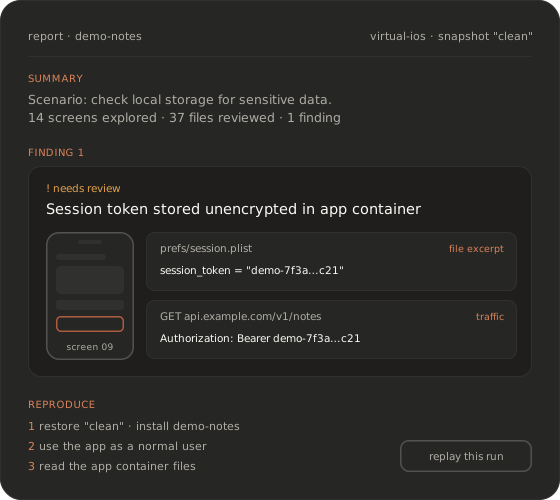 Illustrative report on a fictional demo app.
 AI agents vs. scanners and local MCP servers
| Capability | AI MAST scanners | Local MCP device servers | QA device clouds with AI | recuritylab |
|---|---|---|---|---|
| You direct and extend the agent | Limited; the engine decides | Yes, with your own agent | Natural-language tests, QA-focused | Yes, with natural-language scenarios |
| MCP access | Generally not offered | Yes | Some offer one | Yes, built in |
| Jailbroken iOS / rooted Android | Varies; often physical devices | No; simulators, emulators or USB devices | Generally not | Yes |
| Traffic and file-system access | Inside the vendor’s engine | Usually UI-level only | Not aimed at security inspection | Yes |
| Virtual devices, no physical lab | Varies | Your own simulator, emulator or phone | Real devices or simulators | Yes, managed in the cloud |
| Runs in CI | Typically yes | On your own runners | Yes | Yes, through the API |
Scanners are fast at known patterns, local MCP servers are great for development, and QA clouds cover device variety. We focus on what security work needs: agents you can direct, on devices you can inspect all the way down.
See full comparisonsFrequently asked questions
Which AI models power the agents, and can I bring my own AI agent?
We don’t name model providers on the site. Which models the agents use, where inference runs and whether you can bring your own agent are things we cover in the demo, for your setup. If your policy limits which models may see your app or its traffic, raise it early. It’s one of the first things we check.
Which MCP clients work with the MCP server?
The MCP server follows the open Model Context Protocol, so it’s built for MCP-capable clients rather than one specific tool. Tell us which client or agent framework your team uses and we’ll confirm the fit in the demo. Setup instructions live in the product docs, which are available once access is granted.
Does the AI agent need credentials to test logged-in flows?
If a flow sits behind a login, the agent needs test credentials, just as a human tester would. Whether that works for your app, and how credentials are supplied and protected, is something we go through in the demo. Whatever the setup, use dedicated test accounts, never production credentials.
How are false positives handled in AI agent mobile app security testing?
Every finding comes with the evidence behind it (screenshots, logs, traffic) and a run you can replay from the same snapshot. Findings are drafts for a person to review before they go anywhere. The agent narrows down where to look, and a human makes the call. We don’t publish accuracy figures. Judge the evidence on your own app in a demo.
Where do app data and traffic go when an agent runs?
Agent runs happen on virtual devices in our managed cloud, not on your machines. What is stored during a run, where, for how long and how it is deleted is covered on our security page and in the security review that comes with access.
Can AI agents run in CI?
Yes. Agent scenarios can run on virtual devices from your pipeline through the API, so each build gets its own report. See agents in mobile CI for how teams use it, and the API overview for the interfaces.
Is the API public?
No. The API overview describes what can be automated and how access works. The full API reference, SDK documentation and MCP setup guide are available to customers after access is granted.
How do I get access?
There’s no self-serve signup or public pricing. Book a demo, tell us what you want agents to test, and we’ll review the request and set up access for your team. Book a demo.
Book a demo
AI agents and an MCP server on jailbroken iOS and rooted Android virtual devices. Access is by request.
Book a demo